
If you are upgrading from a 24Files 3.X or 4.X release, you will be able to benefit from major functional improvements, please consult the release notes for full details.
Besides the many functional enhancements, there are a number of non-functional changes that you need to be aware of:
-
We have introduced a new 24Files LWC component in Spring '25. Since then, we have also deprecated the Aura component.
-
We have completely switched to the Microsoft Graph API in Winter '26.
-
We have moved to second generation packaging in Winter '27.
Each of these involves a migration scenario, please carefully read the instructions below before upgrading.
Upgrade Instructions
Here is a list of concrete upgrade steps, more details on the individual releases is provided below.
Always first test the upgrade path in a sandbox environment before moving into production.
We recommend customers to upgrade at least 1 time per year, to avoid long upgrade cycles and data migration issues.
Azure App Registration And Upgrade To 1GP v7.90
-
Check your current 24Files release, you will need it further on in the upgrade procedure.
-
Update your existing Azure Registration App or create a new one from scratch to become compatible with Graph API. Detailed instruction are available here.
-
Upgrade to the latest version of the first-generation package (1GP v7.90):
-
Upgrade your sandbox environment:
https://test.salesforce.com/packaging/installPackage.apexp?p0=04tbm000000a1C5AAI -
Upgrade your production environment:
https://login.salesforce.com/packaging/installPackage.apexp?p0=04tbm000000a1C5AAI
-
-
24Files will automatically add a Remote Site setting to access the SharePoint Graph API.
-
Navigate to the 24Files Manager app and open the 24Files Settings tab.
-
Click on the button to start the upgrade script.
-
After successfully connecting to the Graph API, run the data migration script.
-
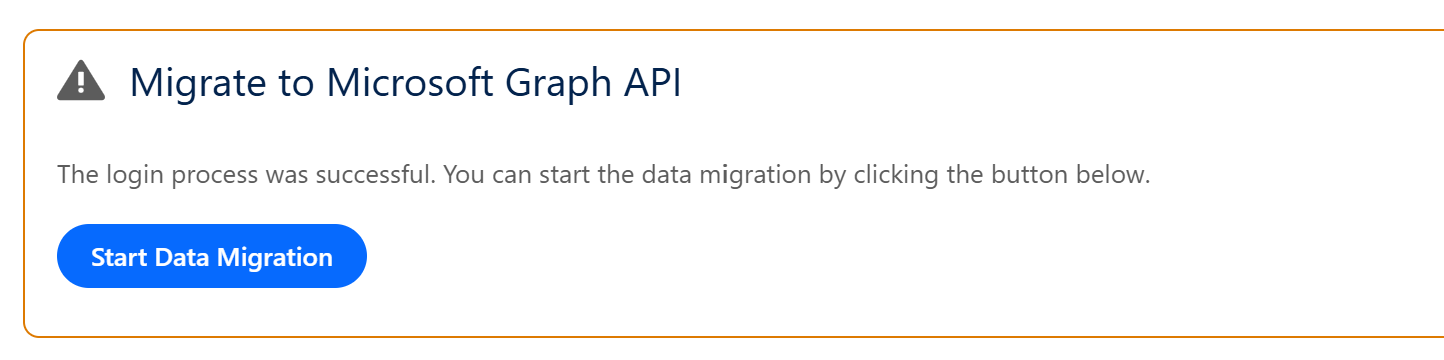
The script will logout all users and you need to login again.
-
Graph API works differently with metadata than the REST API, therefore the upgrade script will try to update automatically all object configurations that you have created. In case any of these upgrades fail (like in the screenshot below), you will need to delete the old configuration manually and recreate it.
-
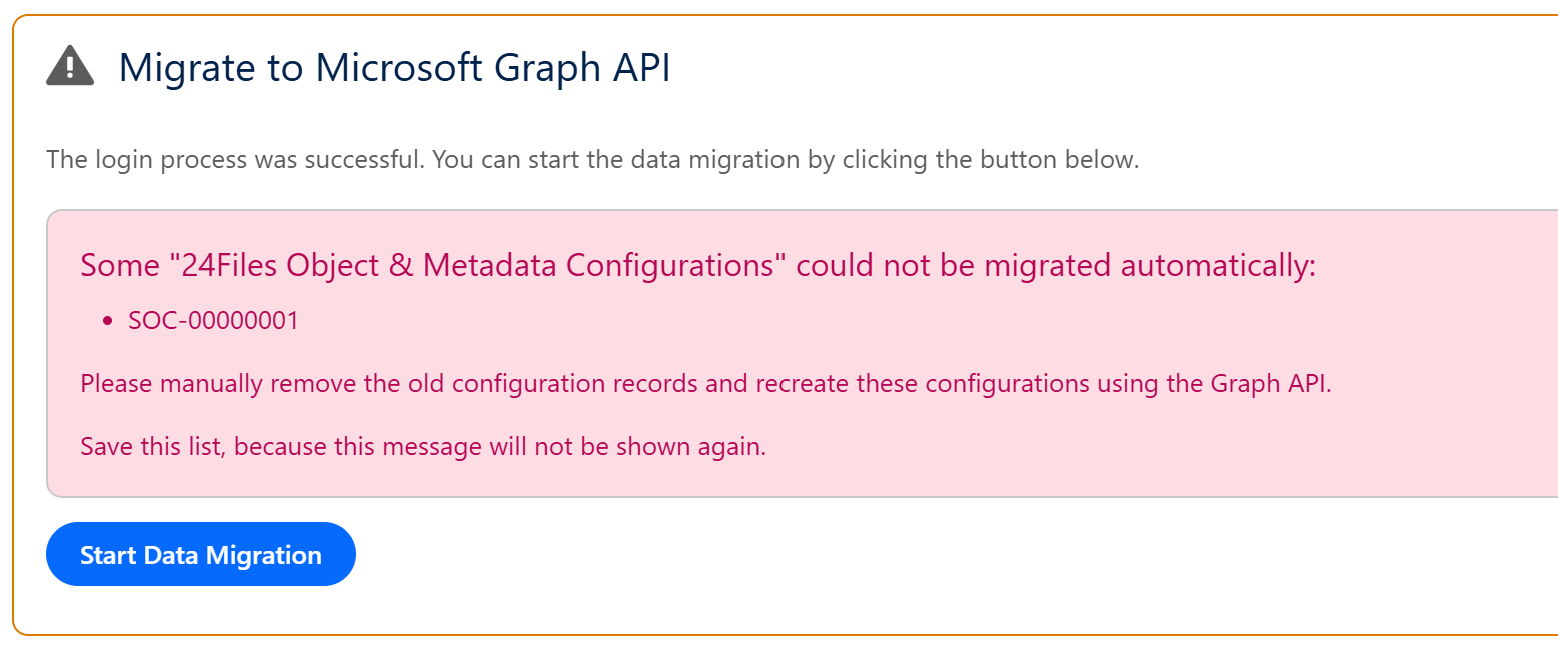
The error message does not mean that the migration script has failed. It has completed, but there were some Object & Metadata Configurations that could not successfully be migrated.
Migrate To Second Generation Packaging
-
Upgrade to second generation packaging (2GP 7.90-2):
-
-
Upgrade your sandbox environment:
https://test.salesforce.com/packaging/installPackage.apexp?p0=04tcj000001G0Y9AAK -
Upgrade your production environment: https://login.salesforce.com/packaging/installPackage.apexp?p0=04tcj000001G0Y9AAK
-
-
-
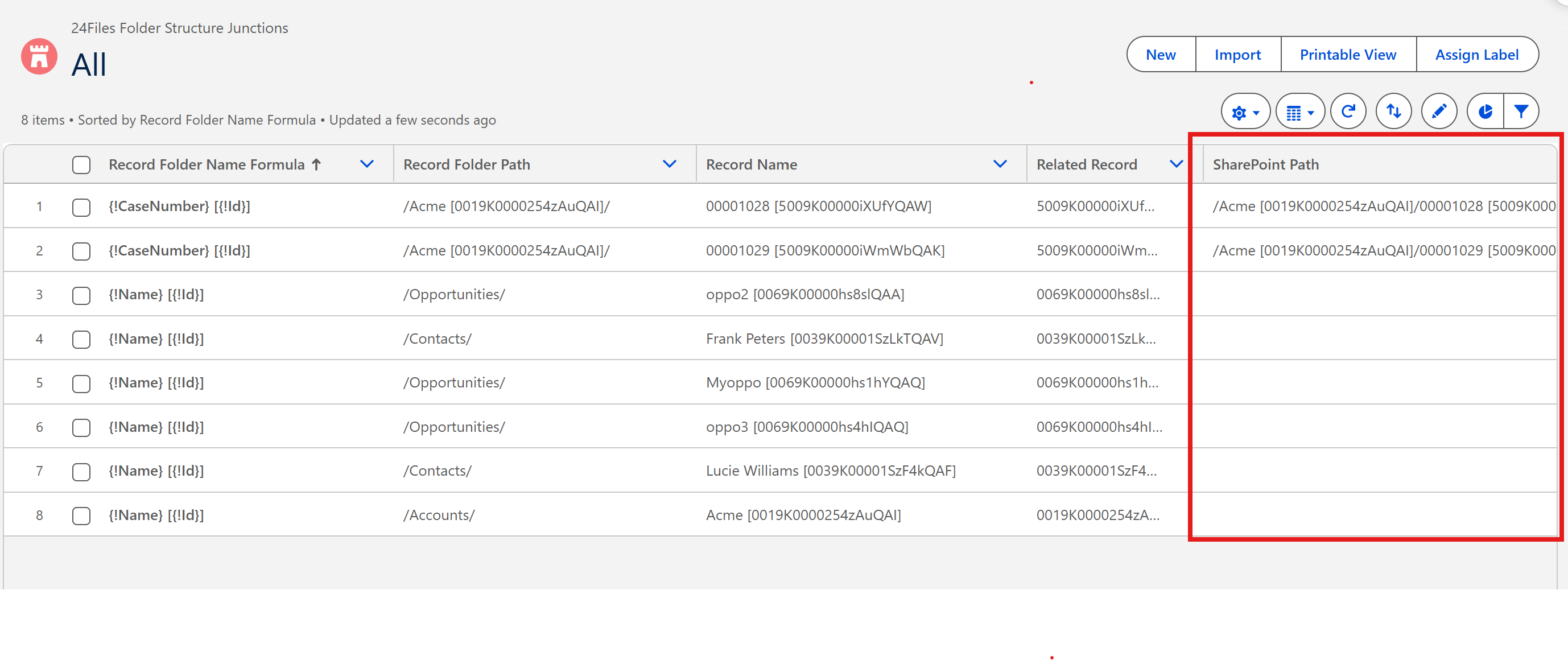
At this point, the path to take depends on your original release. If you migrated from version v4.34 or older, not all SharePoint Path fields in the 24Files Folder Structure Junction may be filled in as in the screenshot below. The result is that the folder structures will not be correctly mapped on the records.
-
In order to populate the SharePoint Path fields, Install v7.92:
-
Upgrade your sandbox environment:
https://test.salesforce.com/packaging/installPackage.apexp?p0=04tcj000001PmP3AAK -
Upgrade your production environment: https://login.salesforce.com/packaging/installPackage.apexp?p0=04tcj000001PmP3AAK
-
-
Now you need to run a script. Click on the Gear Icon and open the Developer Console. Select Debug and Open Execute Anonymous Window. Next paste the following code and hit the execute button:
String jobId = sfy_office365.X24FilesMigrationGlobalMethod.runScript(
    'migrateSharepointPathFromLegacyJunctionData',
    null,
    50
);

System.debug('Migration job: ' + jobId);
Alternatively, you may prefer to upgrade folder structures one at a time, then you use the following script:
Id folderStructureId = 'a089X00001iXEVQQA4';

String jobId = sfy_office365.X24FilesMigrationGlobalMethod.runScript(
    'migrateSharepointPathFromLegacyJunctionData',
    folderStructureId,
    50
);

System.debug('Migration job: ' + jobId);
The script handles a maximum of 10k records per run (Salesforce limit). If your ORG counts more than 10K junctions, you will need to run the script multiple times. The script will automatically skip junctions that have already been migrated.
Switch to LWC And Validate Your Flows
-
As we do no longer support the Aura component, you need replace it by the LWC component. So, click on the Gear Icon and Edit Page, remove the Aura component from your record pages and switch to the LWC component.
-
If desired, update the default Custom Metadata Settings for 24files to customize the look-and-feel of your 24Files component.
-
Thoroughly test and validate all your use cases.
-
Validate your Flows that make use of 24Files Apex Actions. The PATH argument does no longer require the Document Library:
-
PATH before the upgrade e.g. /Document Library/Accounts/ACME [0015I00000n0T3VQAU]/Opportunities/projectA
-
PATH after the upgrade e.g. /Accounts/ACME [0015I00000n0T3VQAU]/Opportunities/projectA Update your Flows accordingly.
-
-
Upgrade to the latest version of 24Files available on the AppExchange.
If you notice that certain capabilities described in the documentation are not visible in your ORG, it likely means you need to manually add some fields to the page layout. Salesforce does not update page layouts automatically.
Background Information On Major Past 24Files Releases
LWC Component - Spring '25 (v4.3.90)
For a long time, 24Files has been offered as an Aura component. As of the Spring '25 release we now also offer an LWC component. The Aura component remains available for the time being but all new developments and or fixed will be done on the LWC component only.
LWC is faster because it uses the native browser APIs and Web Components standard, reducing the need for heavy framework abstractions. Aura relies on more JavaScript processing, leading to somewhat slower load times and rendering. Hence, the overall user experience will be improved by using LWC.
In addition, the LWC component is now configured via custom metadata types . This makes it easier to configure 24Files if you are using the component on multiple objects and want to ensure that the same configuration settings are applied to all of the components.
To make use of the LWC component, it suffices to drop the LWC component onto the record page canvas. The LWC component takes a Custom Metadata Types configuration as an input
Full Graph API support - Winter '26 (v6.00)
As of Winter '26 (24Files v6.00), 24Files works solely with the Microsoft Graph API instead of the Microsoft REST API. The choice is mostly technical and the switch has been made to make 24Files more future-proof.
Upgrade Instructions
Before you upgrade your 24Files app, you will need to upgrade the Azure Registration app, to support permission specific to the Graph API.
More details are found in the documentation here.
As part of the installation, 24Files will automatically add a Remote Site setting to access the SharePoint Graph API.
When you are upgrading from an older version of 24Files, an upgrade script will run that executes the following steps:
-
The script will logout all users and you need to login again.
-
Graph API works differently with metadata than the REST API, therefore the upgrade script will try to update automatically all object configurations that you have created. In case any of these upgrades fail, you will need to delete the old configuration manually and recreate it.
Changes to Apex Calls
If you make use of 24Flow Apex Actions, the Graph release will necessitate the following changes:
-
PATH: The PATH argument does no longer require the Document Library:
-
PATH before the upgrade e.g. /Document Library/Accounts/ACME [0015I00000n0T3VQAU]/Opportunities/projectA
-
PATH after the upgrade e.g. /Accounts/ACME [0015I00000n0T3VQAU]/Opportunities/projectA
-
Support for & and %
With the Graph API, 24Files now also supports ‘&' and '%’ as part of file and folder names.
Support for SharePoint Subsites
With the Graph API, 24Files now also supports SharePoint Subsites when the full path to the subsite is in the URL, i.e. when the URL does not look like that of a regular SharePoint site.
Second Generation Packaging - Winter '27 (v7.90-2)
24Files has been available on the AppExchange since 2020. Since the original release, Salesforce has introduced Second-Generation Packaging (2GP). Salesforce is phasing out support for first-generation packaging, so we have also adopted second-generation packaging in the 24Files Winter '27 Release.
To upgrade to second-generation packaging, you must follow these steps precisely:
-
Upgrade to the latest version of the first-generation package (1GP v7.90):
-
Upgrade your sandbox environment: https://test.salesforce.com/packaging/installPackage.apexp?p0=04tbm000000a1C5AAI
-
Upgrade your production environment:
https://login.salesforce.com/packaging/installPackage.apexp?p0=04tbm000000a1C5AAI
-
-
Install the same release, but as a second-generation package (2GP 7.90-2):
-
Upgrade your sandbox environment: https://test.salesforce.com/packaging/installPackage.apexp?p0=04tcj000001G0Y9AAK
-
Upgrade your production environment: https://login.salesforce.com/packaging/installPackage.apexp?p0=04tcj000001G0Y9AAK
-
-
Optionally, upgrade to the latest release of 24Files available on the AppExchange.
For new installs of 24Files, these upgrade steps are not required — you can start directly with the 2GP package.