In some cases, you may want to move a record folder after the initial folder structure has been set up. As an example you may have a folder Opportunities_OPEN where your Opportunity record folders initially reside. When opportunities are lost, you may want to move them to a different folder Opportunities_CLOSED/Lost.
This poses the following challenges:
-
24Files sets up the folder structure once, when the record page gets loaded for the first time.
-
You need an Apex action to move the record folder and all of its content to the new location.
-
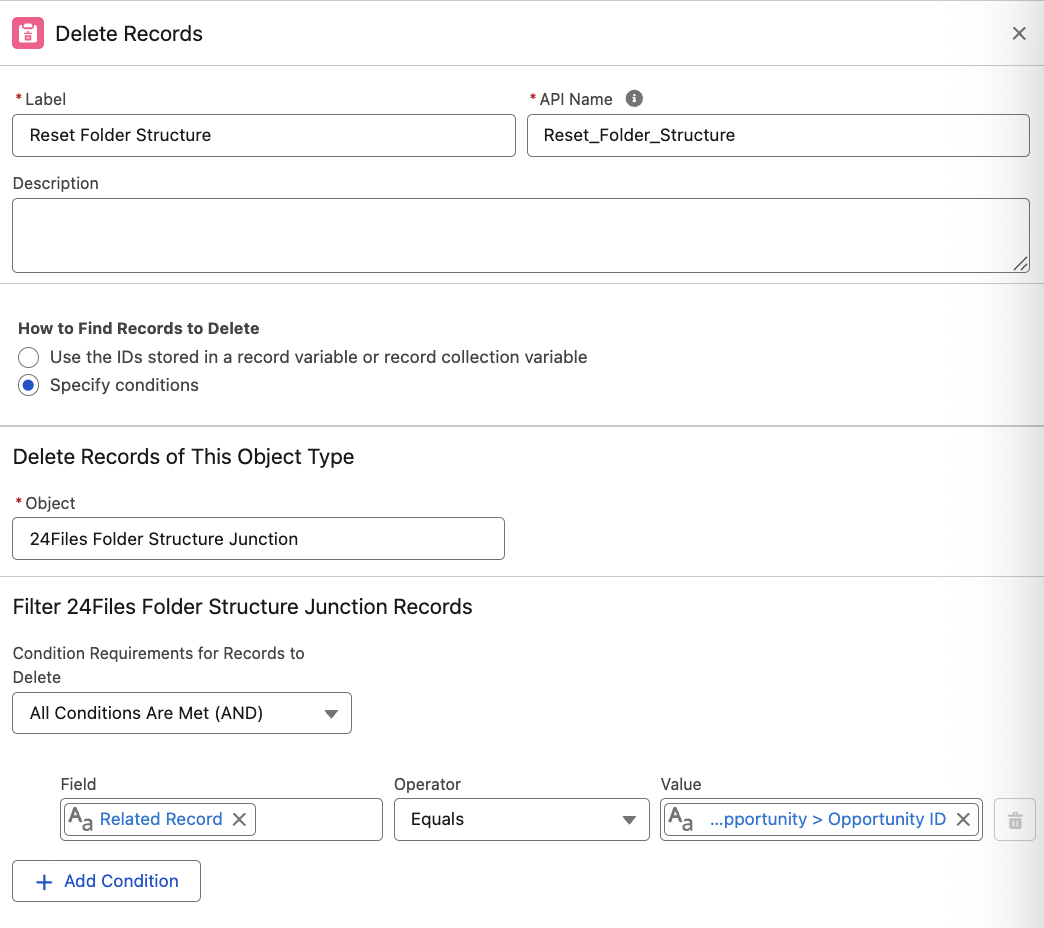
You need a way to reset the folder structure after the move, such that the content of the record folder remains visible in the 24Files component.
The use case above can be built by means of a Record Triggered Flow as described in the video. You can use this as an inspiration to build a similar flow for your use case.
General Flow overview
At the request of our customers, we’ve prepared a step-by-step guide on how to set up an example flow, which you can configure yourself.
Please note: that this flow is different from the one shown in our video.
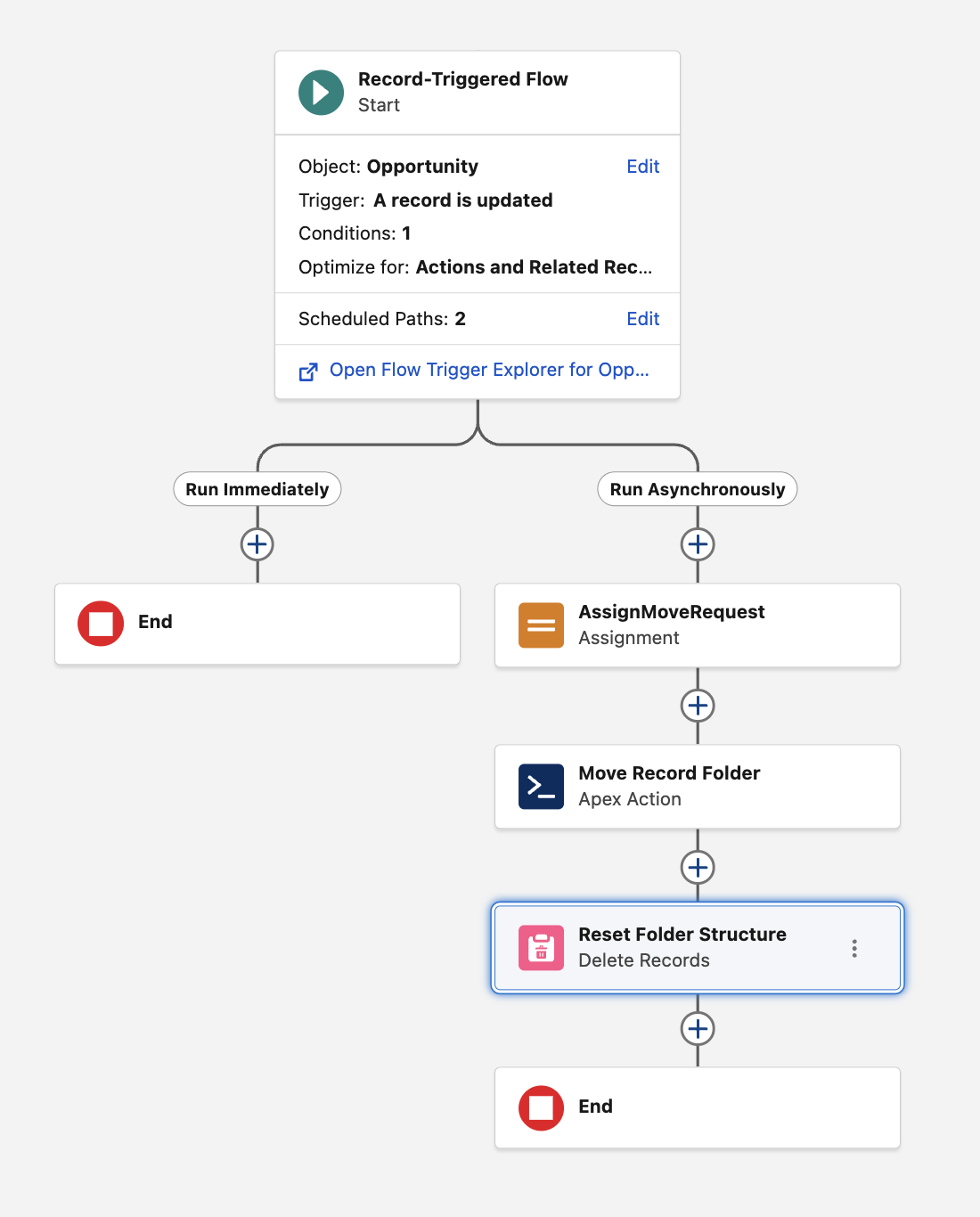
Overview of the flow
Setting up the example flow
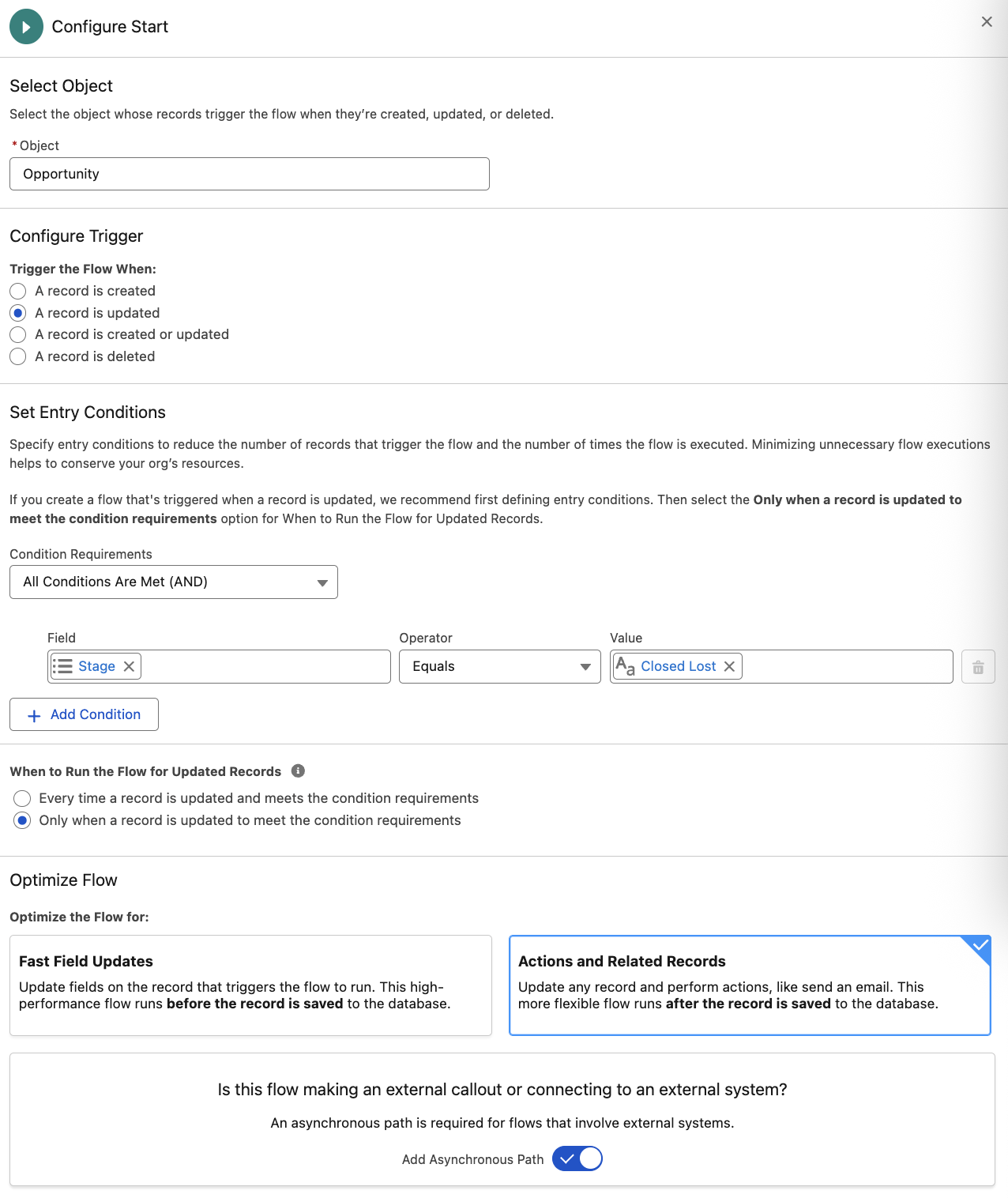
Create the record-triggered flow
In this example, the flow is triggered when an Opportunity is updated. Specifically, when the Stage is set to Closed Lost.
Create the resources
This example flow requires four resources in total:
-
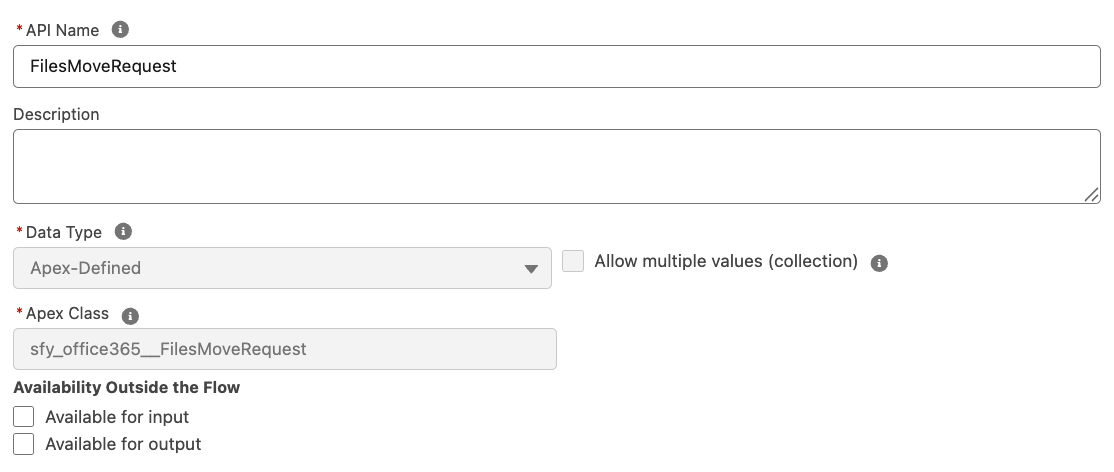
sfy_office365__FilesMoveRequestholds the data for a single move request.-
Type: Variable (not a collection)
-
Data Type: Apex-Defined ->
sfy_office365__FilesMoveRequest
-
-
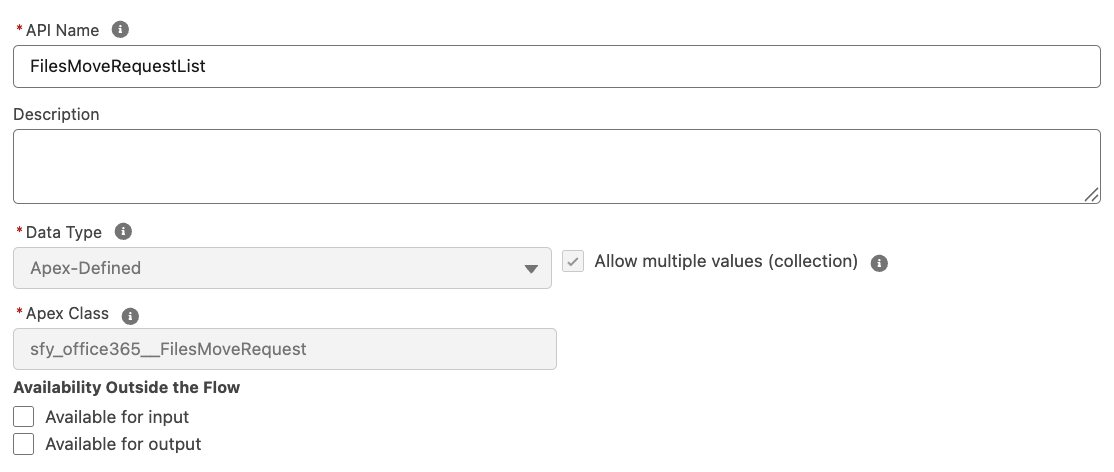
List<sfy_office365.FilesMoveRequest>stores the list of move requests to be sent to the Apex action.-
Type: Variable (collection)
-
Data Type: Apex-Defined ->
List<sfy_office365__FilesMoveRequest> -
Allow multiple values = True
-
-
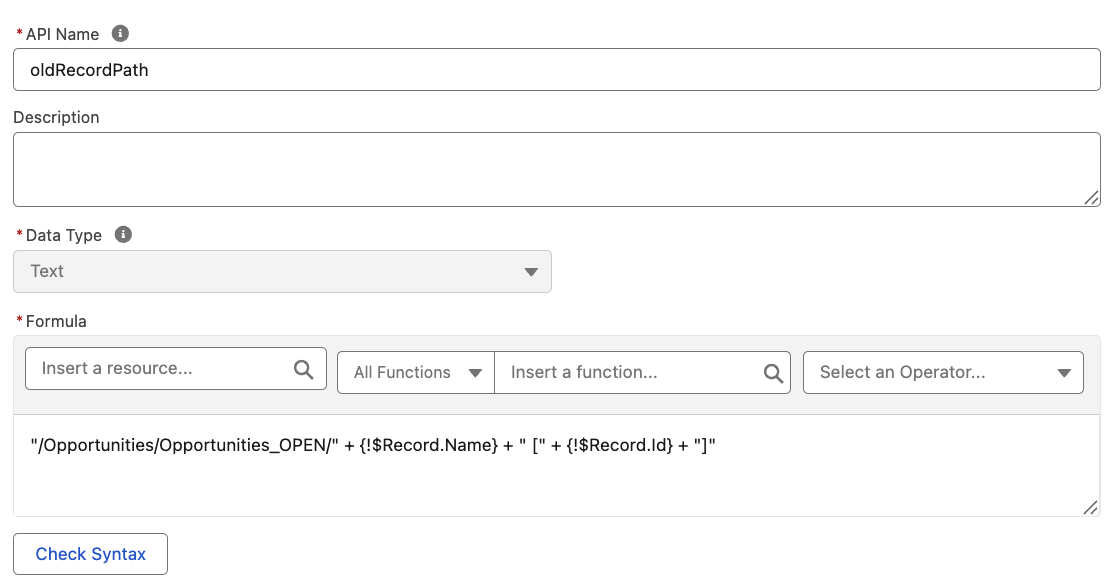
Formuladefines the current location of the record folder.
In this example,
/Opportunities_OPEN/represents the folder where open Opportunity record folders are stored.
"/Opportunities/Opportunities_OPEN/" + {!$Record.Name} +" [" + {!$Record.Id} + "]"
-
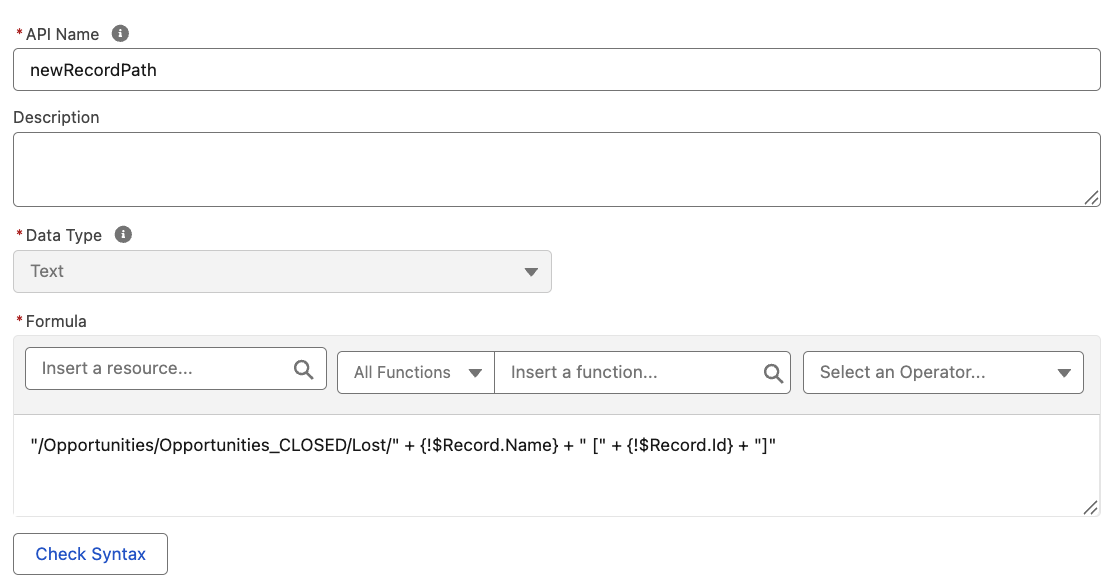
Formuladefines the destination path where the record folder should be moved.
Here,
/Lost/represents the folder where closed or lost Opportunities are stored.
"/Opportunities/Opportunities_CLOSED/Lost/" + {!$Record.Name} + " [" + {!$Record.Id} + "]"
Assign the resources
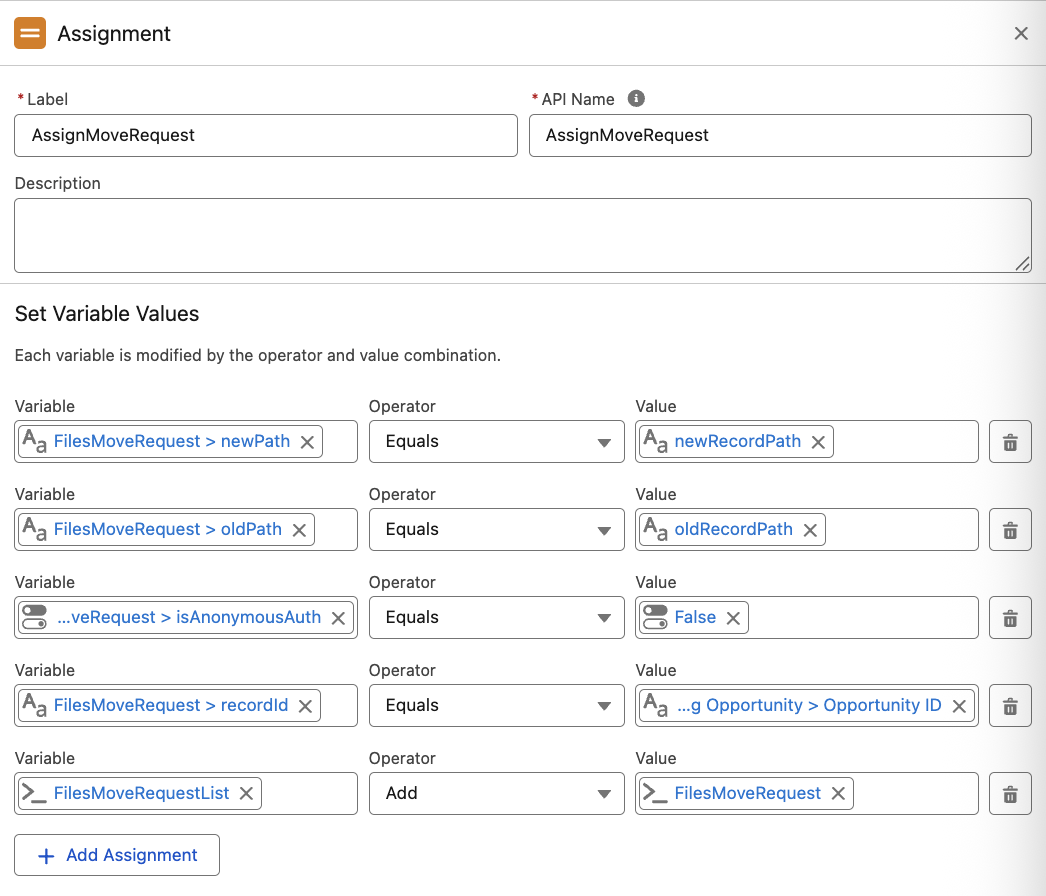
Create an Assignment element to assign the resource values.
Add the sfy_office365__FilesMoveRequest request to the FilesMoveRequestList collection.
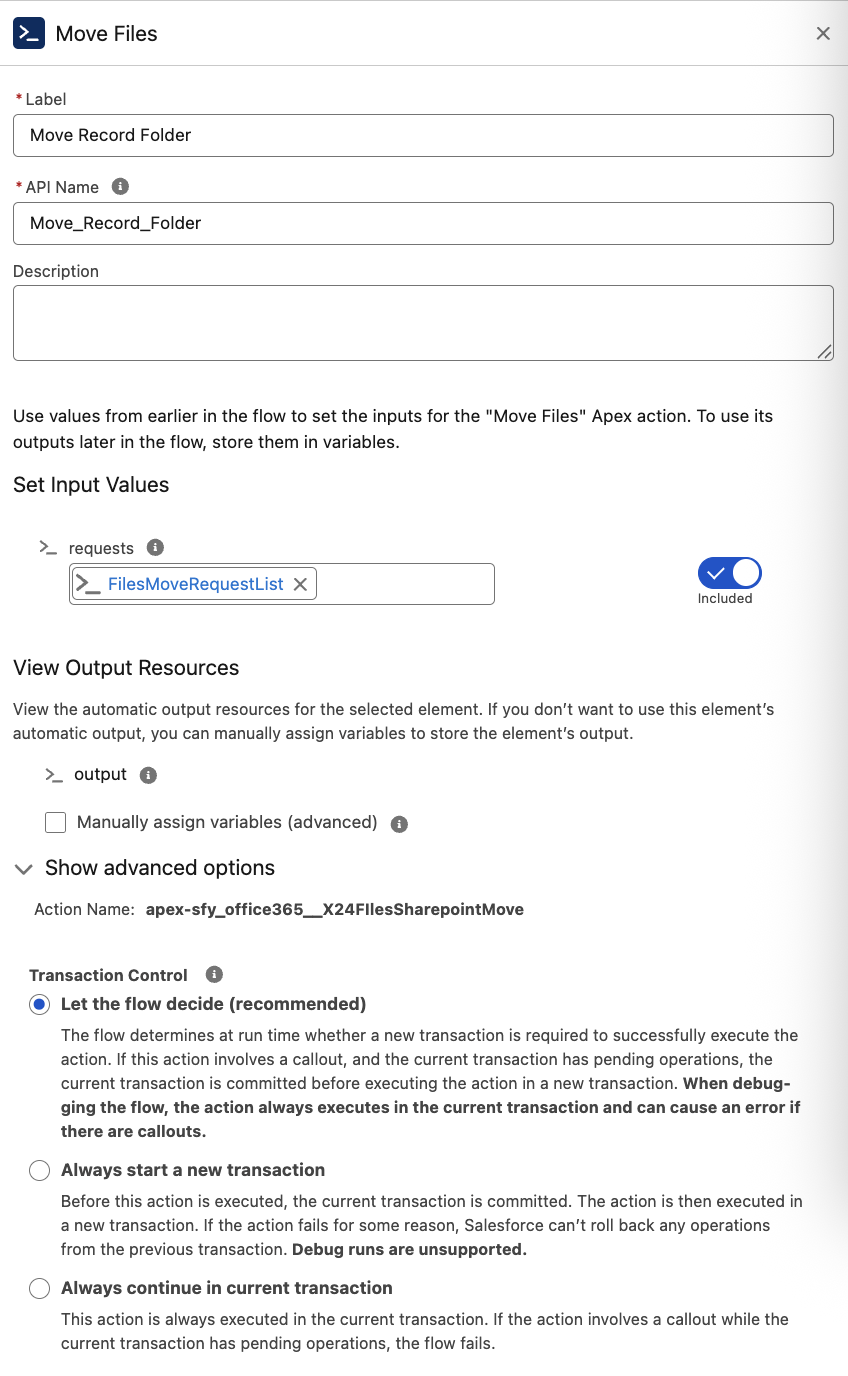
Create the Apex Action
Add the Apex action sfy_office365__X24FilesSharepointMove to your flow.
Provide it with the List<sfy_office365.FilesMoveRequest> as input.
Reset the Folder Structure
After moving the folder, the folder structure needs to be reset so that 24Files can rebuild it correctly.
You can do this by deleting the 24Files Folder Structure Junction record where the
sfy_office365__Related_Record_Id matches the Opportunity Id.