
This guide shows you how to make 24Files available on your record pages in the Field Service Mobile App.
Because the 24Files component can't be placed directly on a Field Service Mobile record page, the recommended approach is to add it as a Quick Action. Once configured, your mobile users can open 24Files from the Actions menu on any supported record, the same way they would use Edit or any other record actions.
Note: this guide assumes Field Service is already set up in your org. It only covers getting the 24Files LWC working in the Field Service Mobile app.
Step 1: Create the custom action
-
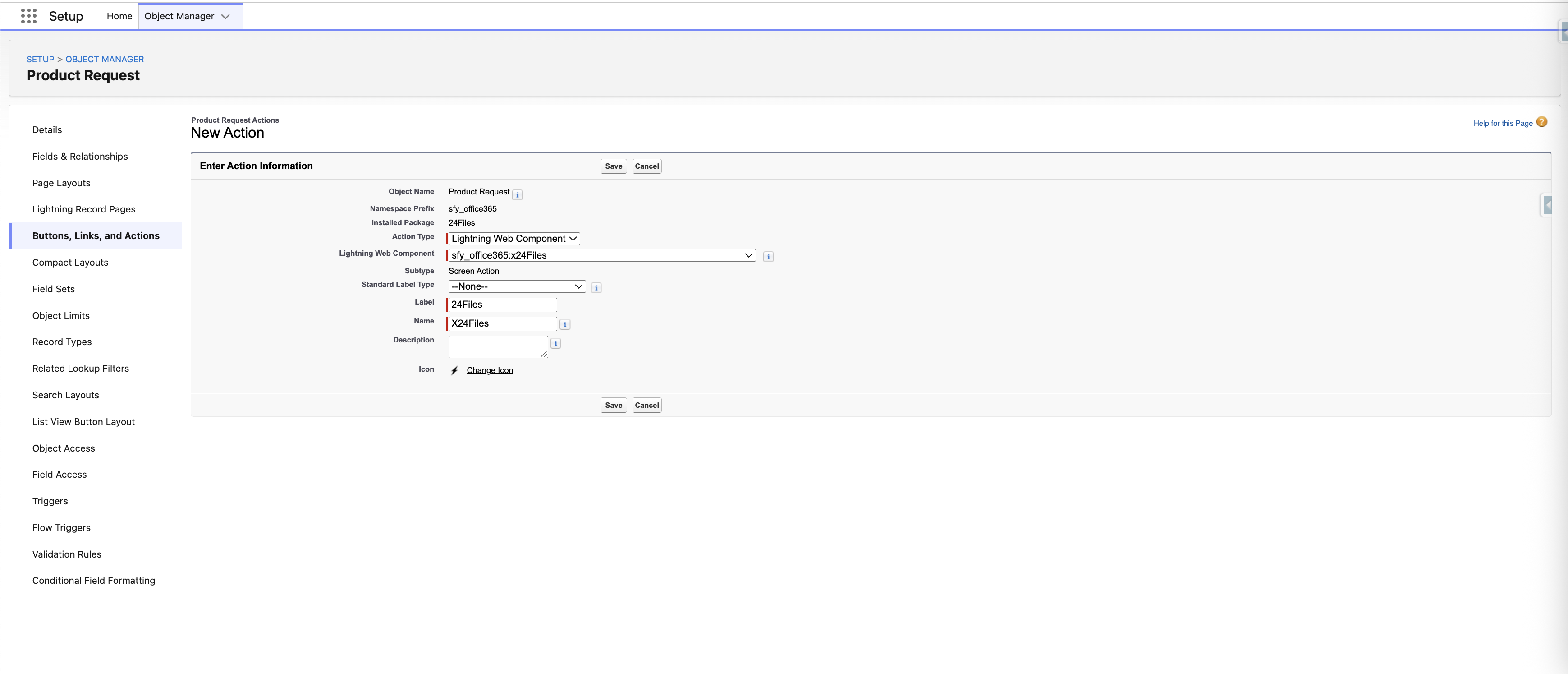
Go to Setup → Object Manager → select the object (e.g. Product Request)
-
Open Buttons, Links, and Actions → click and create New Action
-
Action Type: Lightning Web Component
-
Lightning Web Component:
sfy_office365:x24Files(shown as x24Files) -
Label: e.g. 24Files
-
Icon: your choice
-
-
Click Save
Step 2: Add the action to the page layout
-
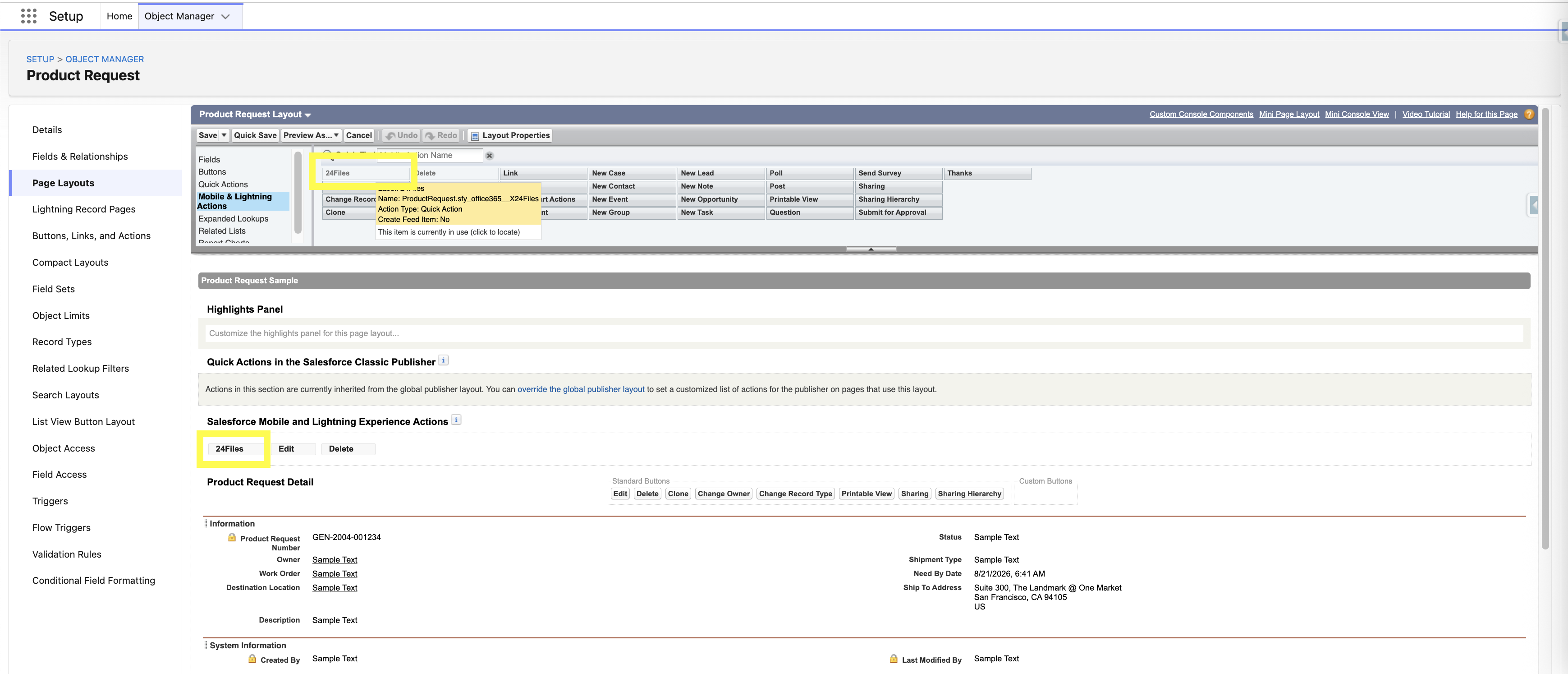
On the same object, go to Page Layouts and open the layout your users are assigned to
-
In the layout editor, select Mobile & Lightning Actions in the palette
-
Drag 24Files action into the Salesforce Mobile and Lightning Experience Actions section
-
Click Save
Step 3: Enable Field Service Mobile settings
-
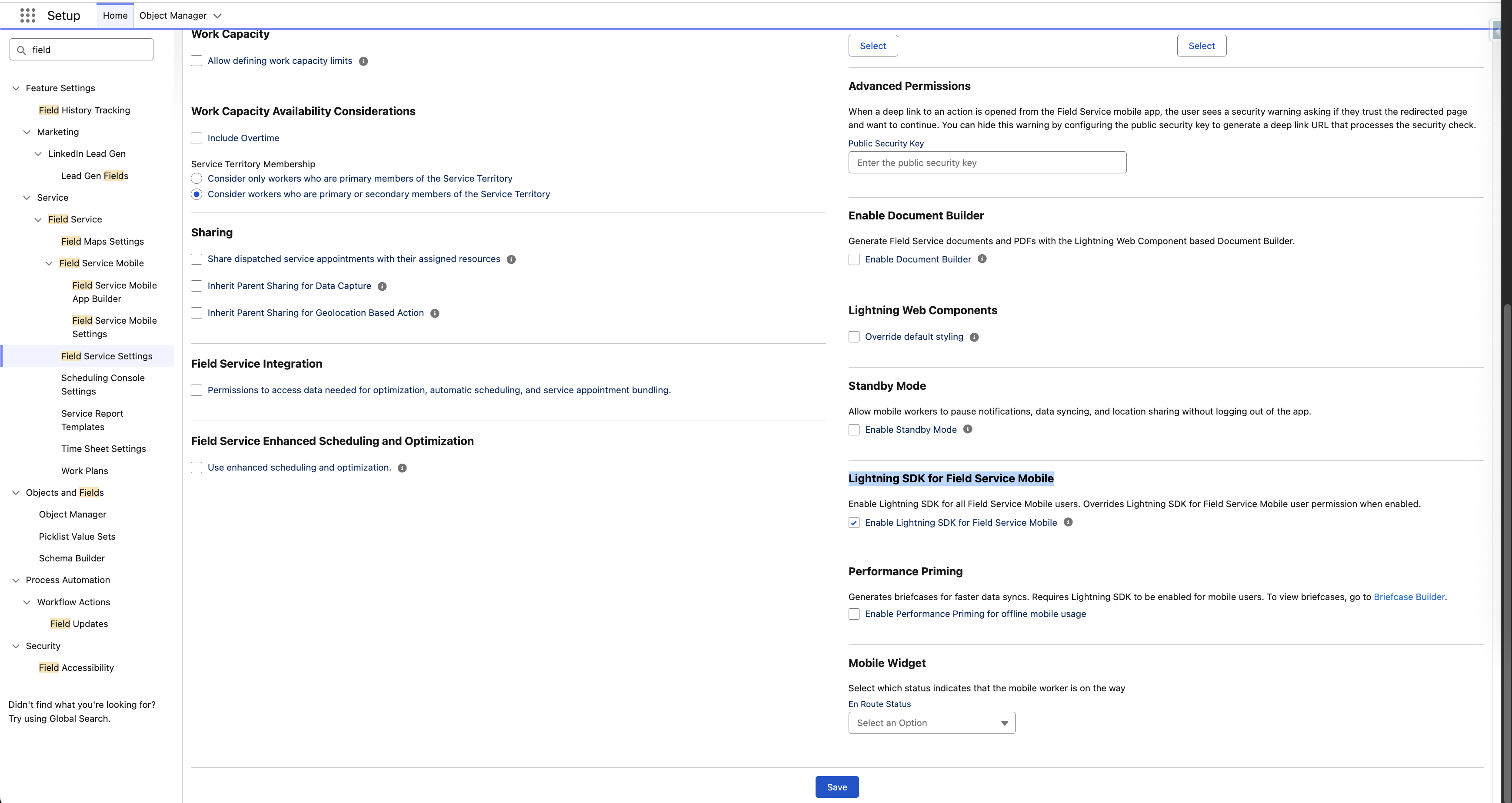
Go to Setup → Field Service Settings
-
Enable Enable Lightning SDK for Field Service Mobile (enables Lightning Web Components in the Field Service Mobile app)
-
Save
Step 4: Test on your mobile device
-
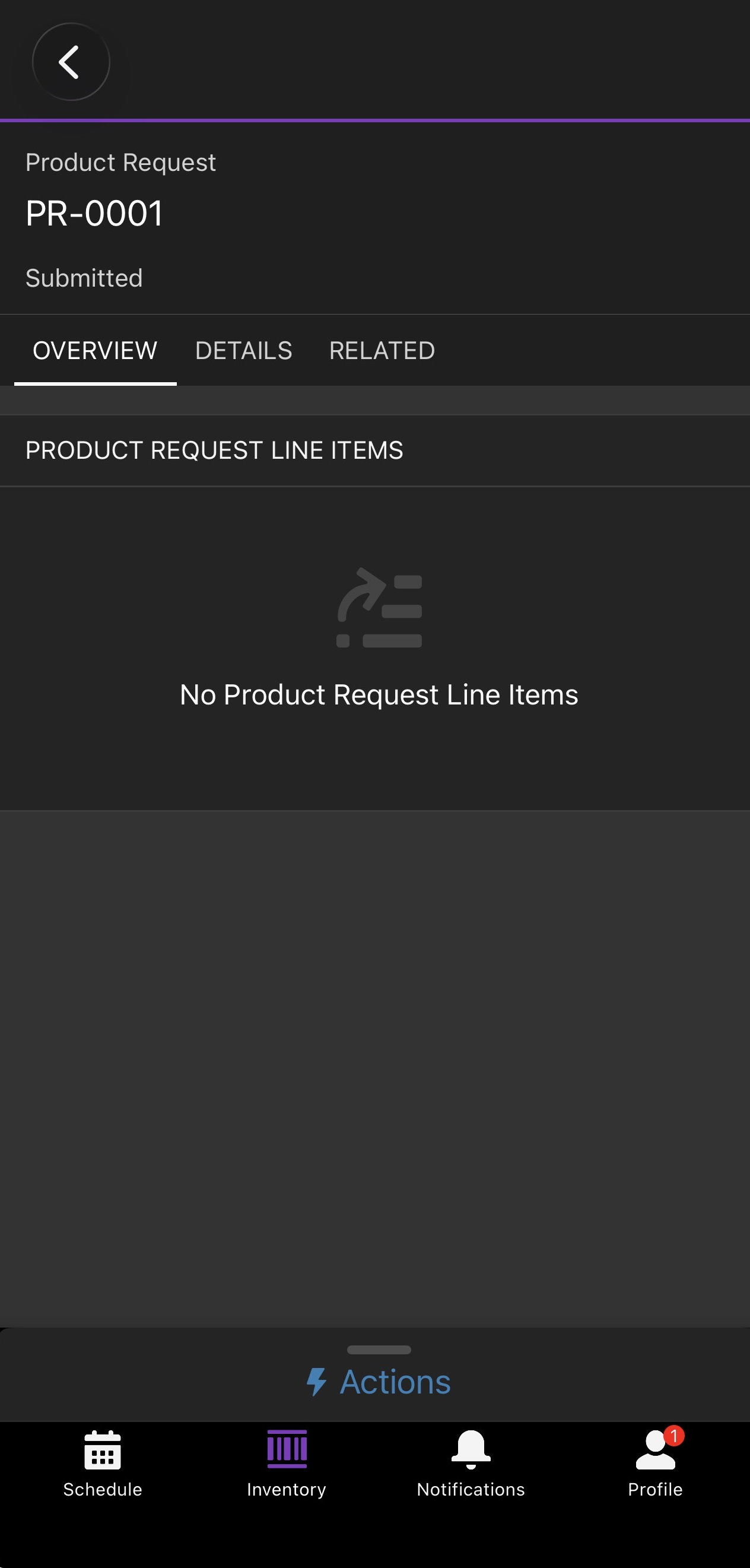
Open the Field Service Mobile app, clear the cache and log out and back in
-
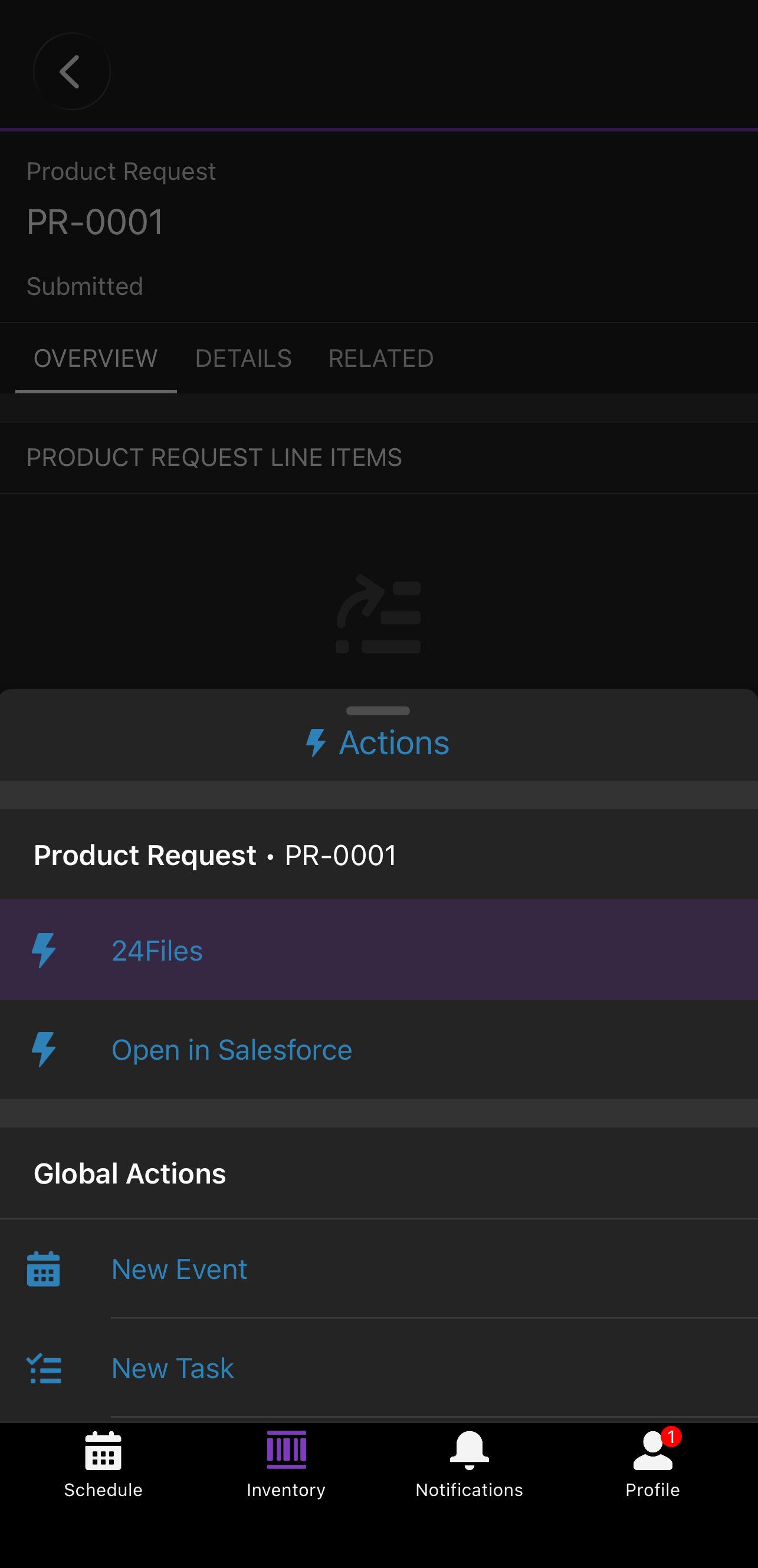
Open a record page, of the object for which you created the action (e.g. a Product Request)
-
Tap Actions → 24Files
-
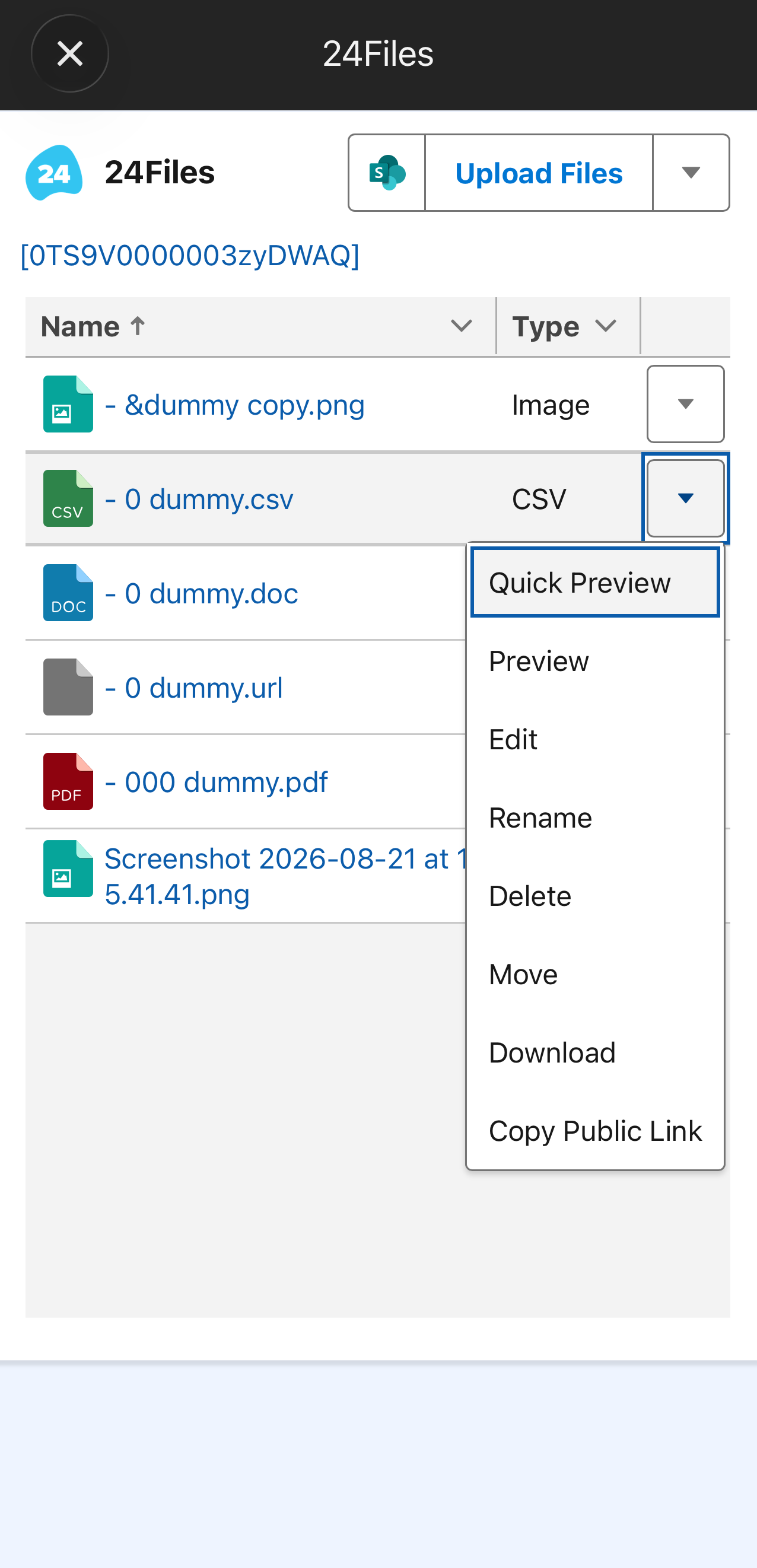
The screen with the 24Files component should open
Things to keep in mind
24Files Component Setting: Default
As a Quick Action, the component can't receive custom properties like settingId. It always uses the 24Files Component Setting (Custom Metadata Type) with developer name Default. Make sure that setting exists and is configured correctly.
Folder structure merge fields
If your folder structure uses {!Name} on an object that doesn't have a Name field (e.g. Product Request uses ProductRequestNumber), the component may show an error. Update the record folder formula in your folder structure configuration to use the correct field for that object.
Per-object setup
Repeat Steps 1 and 2 for each object where you want 24Files available on mobile.