
Work without a Public Folder
This is a feature that has been requested by many customers ‘Can we remove the Public Folder?’. Actually, this is possible as of the summer release '26, provided of course that you do not use Anonymous Access.
As a brief reminder: the Public Folder (and its subfolders) are the only folders accessible to users that have access to 24Files in Anonymous Access mode. Anonymous Access is primarily used on Experience Cloud, where external users without a SharePoint account, can still upload documents to SharePoint via a shared service account. In case your setup does not make use of Anonymous Access, you no longer need a Public Folder in your folder structure.
In the Folder Structure tab in the 24Files Manager app, there is a new option Disable Public Folder for that specific folder structure.
If you are upgrading from an older 24Files release, and do not see this checkbox, please navigate to Setup > Object Manager. Search for 24Files Folder Structure. Navigate to Page Layout and add the Disable Public Folder checkbox to the page layout.
Please note that 24Files does not remove any folders or files from SharePoint, so disabling the Public Folder will not have any effect on existing records.
Existing folder structures will not change when upgrading, i.e. the checkbox is unchecked by default.
Edit Metadata
24Files already allowed users to define metadata at the time of file upload. Now, users can also edit metadata for files.
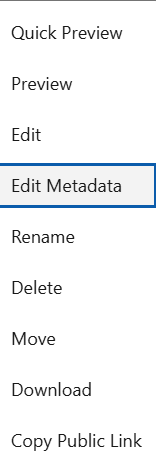
In order to enable this capability for your users, make sure you checked the Enable Edit Metadata checkbox in the 24Files Component settings (Custom Metadata Types).
SharePoint Metadata & Object Configuration
Some customers had accidently added read-only metadata fields in the Fields to edit section of the object configuration. In order to prevent this, we have applied filtering such that only editable SharePoint metadata fields can be selected.
SharePoint Metadata for Dynamic SharePoint Sites
This summer release adds support for viewing and editing SharePoint metadata when using Dynamic SharePoint Sites. Because the site or library can change at runtime, 24Files needs a fixed reference to discover which metadata fields are available.
In order to support this scenario, the Object Configuration has been extended for when you have checked the box Enable Dynamic SharePoint Site.
Configure Dynamic SharePoint Metadata Config Path with a SharePoint path (for example, /sites/YourSite/Shared%20Documents/) for the reference site. 24Files uses this path only to discover metadata fields and determine which fields users can view/edit, file loading for a specific record still uses the Dynamic SharePoint Site configuration.
This setting is optional unless you want metadata support with Dynamic SharePoint Sites. If you don’t set it, the files will still appear using the default/preconfigured columns, but 24Files won’t be able to reliably discover the full field list for the dynamically selected site/library.
If you use Dynamic Metadata in combination with Dynamic SharePoint sites, please verify that the fields that you select under ‘Fields to display’ and ‘Fields to edit’ exist across all your Dynamic SharePoint Sites, else you will get errors.
Enable the Lightning Design System 2 (SLDS 2) Theme
For the best admin and user experience, we recommend that you enable the SLDS 2 theme on your environment, via Setup > Themes and Branding.
Sub Releases
-
6.230 up to 6.330