
The 24Files Winter '27 revolves around 3 big themes:
-
Document process automation.
-
Copilot integration.
-
Second generation packaging.
In addition, we have updated our documentation on how to use 24Files with the Salesforce Field Service Mobile app.
Document Process Automation
Document process automation has always been at the core of 24Files with features such as automated folder creation, automated transfer of files from Salesforce storage to SharePoint and the large library of Apex actions available to build custom automation Flows.
The latter has grown even more important, and we have added a number of new features to facilitate even richer document process automation:
Create Chatter File Links
Generate Chatter File Links via an invocable Apex action. Chatter file links are records that contain the path to files on SharePoint. Normally, Chatter links are generated automatically in the following cases:
-
At the initial load of the 24Files component on a record page, Chatter File Links are created for the files in the record folder (authenticated access mode) or in the public folder (anonymous access mode).
-
When a user uploads a file via the 24Files component, a Chatter File Link record is created for that file.
-
When a user opens a folder in the 24Files LWC component. In this case Chatter File Links are created for all files in the folder.
However, in backend-driven scenarios where folders and files are created entirely through automation, users may never manually open each folder. In such cases, this batch method allows you to generate all Chatter links without requiring folder visits, making files globally searchable and Chatter-ready immediately. More info here.
In addition, there is a new option in the Folder Structure definition to enable/disable Chatter File Link generation for the record folder and/or its subfolders. For large ORGs that can potentially generate a lot of Chatter File Links, this gives you more granular control.
Create Chatter File links for a record
Automatic generation of Chatter File Links without the need to manually visit the record page. You will find the details here.
Migrate Files Batch Upload
This Apex action has been extended. You can now specify to ignore certain file extensions when uploading files to SharePoint.
List all files for a record
The List Files in Record invocable Apex method lets you retrieve a list of SharePoint files for a Salesforce record.
Normally, users browse files through the 24Files LWC component. But sometimes files are created or managed entirely by automation, and users never open the folders themselves. This method gives your Flows or other Apex processes a way to see what’s in a folder without needing anyone to click around.
It works for both recursive searches across all subfolders or targeted searches in a single folder, so you can use it to check how many files exist, find specific file types, or generate simple file reports. Learn more here.
Handling Duplicate Files
By default, when a file is uploaded to SharePoint with a duplicate filename, SharePoint replaces the existing file. The previous version can still be accessed through the version history.
However, this behavior can be undesirable when different files happen to have the same filename. This Duplicate Filename Behavior option controls what happens when a duplicate filename is detected. The following conflict behaviors are supported:
|
Option |
Behavior |
|
Replace (default) |
Overwrites the existing file (keeps as previous version) |
|
Rename |
Keeps both files. The new file gets a unique suffix |
|
Fail |
Blocks the upload, logs an error, and leaves the existing file unchanged |
Duplicate Filename Behavior, configured on the Folder Structure, lets you choose whether 24Files should overwrite, rename, or block these uploads. Read more here.
Copilot Integration
24Files now integrates with the Microsoft 365 Copilot Retrieval API, which allows you to search for documents and their content within your record folder.
The Microsoft Retrieval API achieves RAG (Retrieval Augmented Generation) by extracting up-to-date and relevant text snippets from SharePoint. The Retrieval API keeps your data in place and upholds your access and governance controls. The Retrieval API ensures that synthesized responses are informed by the latest and most relevant data. This process enhances the reliability and usefulness of your generative AI solutions.
The API supports natural language queries and uses the Microsoft 365 Copilot stack to retrieve relevant grounding context within the Microsoft 365 trust boundary. Within an organization, the permissions model in Microsoft 365 ensures that individuals can only get results from the content they are allowed to access.
When Copilot is enabled, an additional icon appears in the 24Files component:

Clicking on the icon brings you to a search popup:
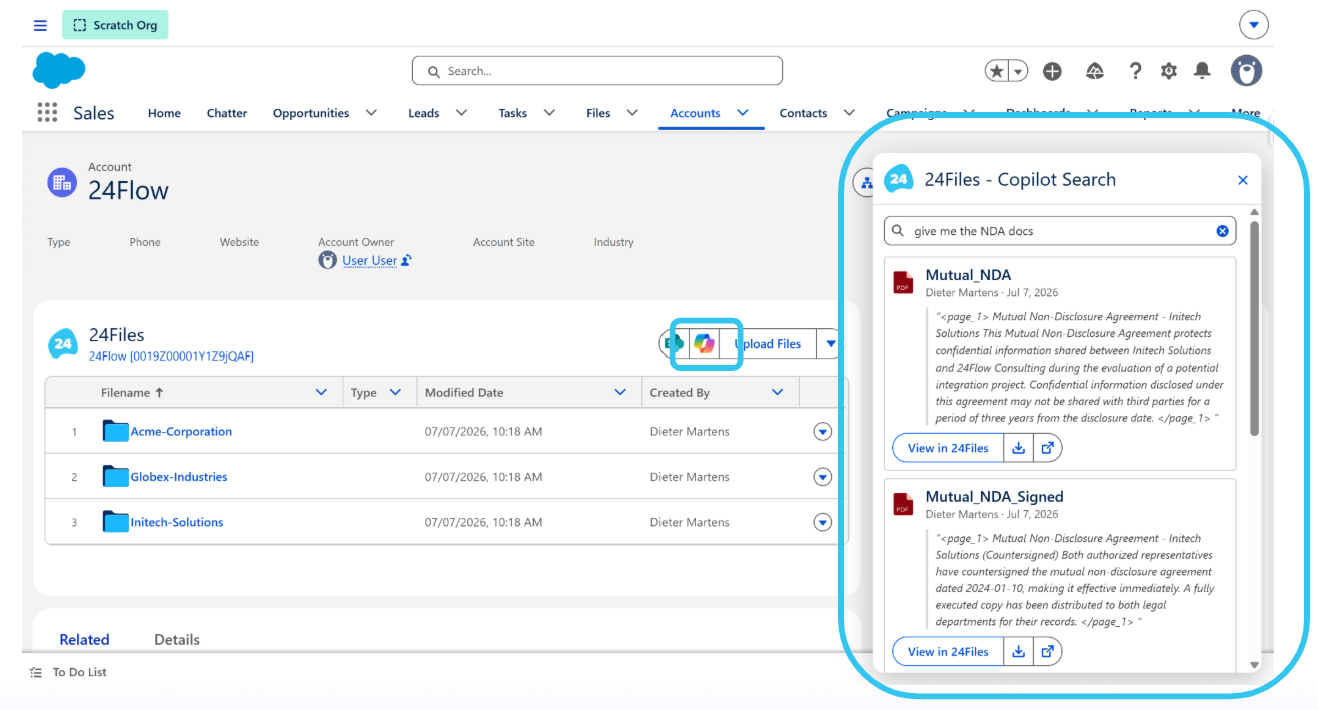
Read more here or watch the video below.
If you want to enable Copilot, contact the 24Files team who can activate the feature on your Salesforce ORG(s).
Second Generation Packaging
24Files has been available on the AppExchange since 2020. Since the original release, Salesforce has introduced Second-Generation Packaging (2GP). Salesforce is phasing out support for first-generation packaging, so we have also adopted second-generation packaging in the 24Files Winter '27 Release.
To upgrade to second-generation packaging, you must follow these steps precisely:
-
Upgrade to the latest version of the first-generation package (1GP v7.90):
-
Upgrade your sandbox environment:
https://test.salesforce.com/packaging/installPackage.apexp?p0=04tbm000000a1C5AAI -
Upgrade your production environment:
https://login.salesforce.com/packaging/installPackage.apexp?p0=04tbm000000a1C5AAI
-
-
Install the same release, but as a second-generation package (2GP 7.90-2):
-
Upgrade your sandbox environment:
https://test.salesforce.com/packaging/installPackage.apexp?p0=04tcj000001G0Y9AAK -
Upgrade your production environment: https://login.salesforce.com/packaging/installPackage.apexp?p0=04tcj000001G0Y9AAK
-
-
Optionally, upgrade to the latest release of 24Files available on the AppExchange.
For new installs of 24Files, these upgrade steps are not required — you can start directly with the 2GP package.
Using 24Files in Field Service Mobile
We have updated our documentation on how to enable 24Files in the Field Service Mobile app.
Please read more in our step-by-step guide here.