
Create azure app via: https://portal.azure.com
-
Click on ‘App Registrations’ or ‘Azure AD’ → ‘App Registrations’
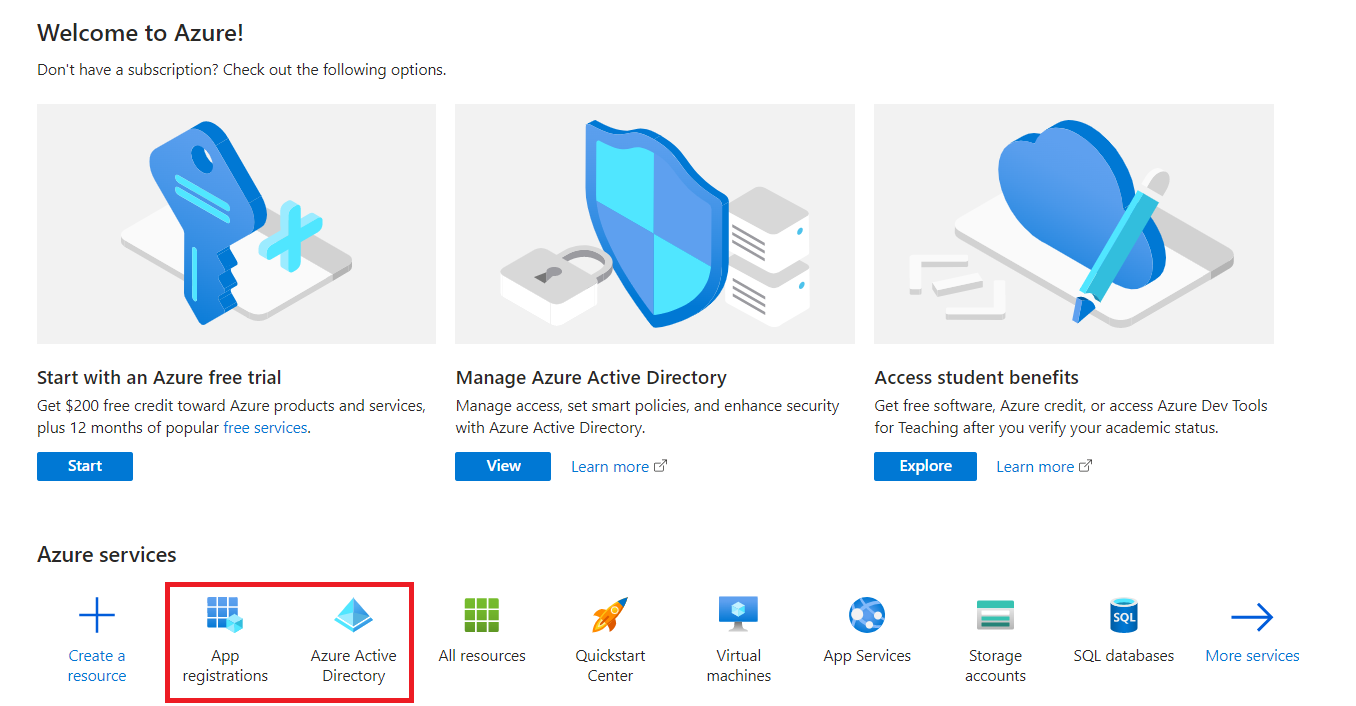
2. Click “New registration”.
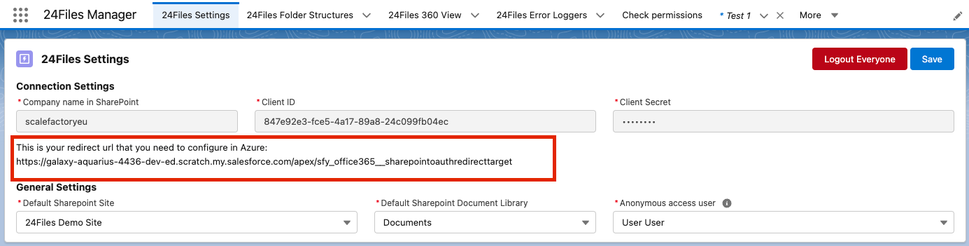
3. Copy the redirect url from 24Files
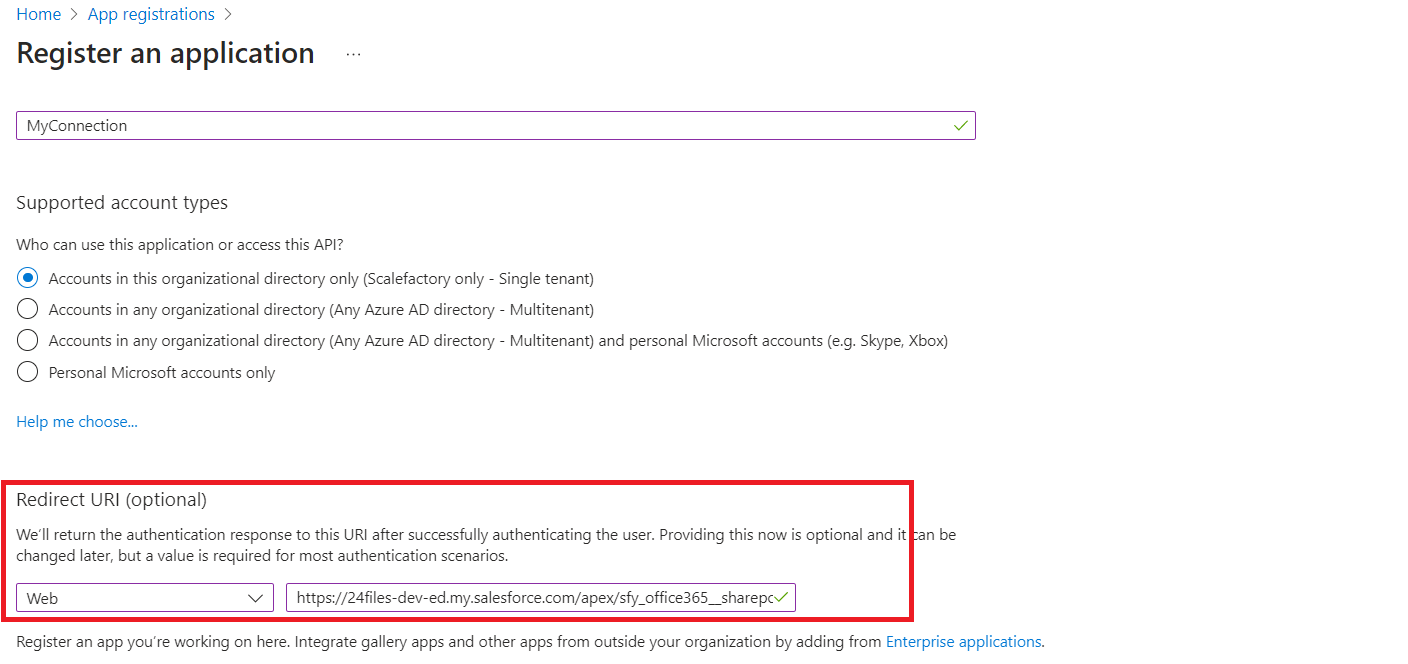
4. Click Register
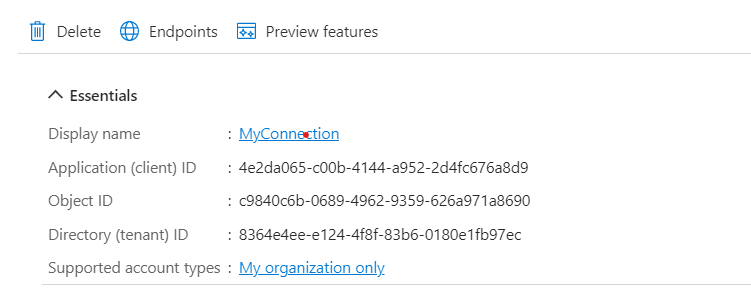
5. Copy the clientID as shown below, as you will need it later for configuring 24Files.
6. Navigate to secrets, press “New client secret”, give it a name and select an expiration period
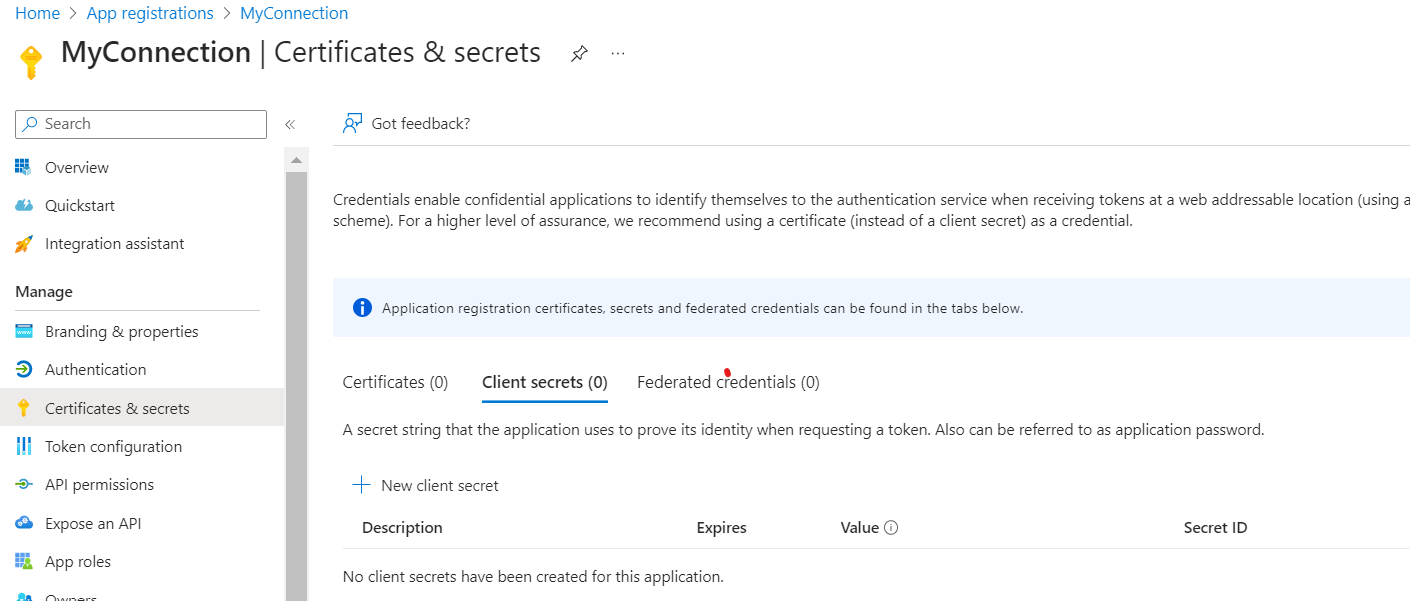
7. Click “Add”.
8. Copy the value field (not the Secret ID field)
9. Please note that this Secret will expire and after the expiration date, the connection with 24Files will be broken. Hence it is recommended to set a calendar reminder prior to the expiration date to create a new Client Secret. See also the Upgrades, Troubleshooting & Application Maintenance section of this guide.